How do I use the Print Head Alignment utility?
Applies To:
- Operating Systems: Windows 11, Windows 10, macOS
- Hardware: Epson EcoTank and Expression Series Printers (e.g. ET-4950, L6390, XP-2200 and similar models)
- Software: Epson Printer Driver
Description
This article provides guidance on how to perform a Print Head Alignment, using the dedicated printer utility.
Symptoms
- Prints appear blurry
- Printed text and lines appear skewed
Solution
Before proceeding with this solution, it is recommended to ensure the print head is working as it should be. This can be done via the head cleaning utility. Full instructions can be found here or in your user manual.
Additionally, check the following:
- Make sure that no error lights are lit or flashing on the printer control panel.
- Make sure A4 size plain paper is loaded in the sheet feeder.
1. Access the Print Head Alignment utility:
Windows 11
 Note: Note: |
|---|
If you cannot find the Head Alignment Utility in the driver, check the product screen options under the Maintenance menu or for specific instructions consult your product’s user manual. |
- Click on the Start menu and search for "printer", click on the result.
- Click on your installed printer.
- Click on Printer Properties.
- Click on the Maintenance tab and Print Head Alignment should be listed.

Windows 10
| Note: |
|---|
If you cannot find the Head Alignment Utility in the driver, check the product screen options under the Maintenance menu or for specific instructions consult your product’s user manual. |
- At the bottom left of the screen click or tap on the Start button and the menu appears.
- Click on Settings.
- Click or tap on Devices.
- On the next screen click or tap Devices and Printers from the bottom of the window.
- Right click on the installed printer and select Printing Preferences.
- Click on the Maintenance tab and Print Head Alignment utility should be seen in the list.
2. Using Print Head Alignment Utility
- Click on Print Head Alignment.
-
Click Next.

-
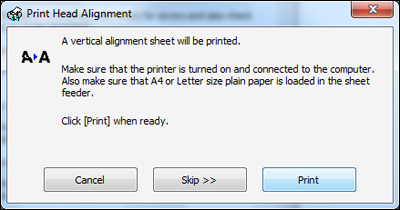
Click on Print.
-
The vertical alignment sheet will print. Follow the on-screen instructions.

- Click Realignment or > as required and continue to follow the on-screen instructions. After checking and correcting the vertical alignment of the print head, the process will be repeated to allow you to check and correct its horizontal alignment.
| Note: |
|---|
|
This process may differ depending upon model. For the full guide please consult your product user manual. |
1. Access the Print Head Alignment utility:
| Note: |
|---|
If you cannot find the Head Alignment Utility in the driver, check the product screen options under the Maintenance menu or for specific instructions consult your product’s user manual. |
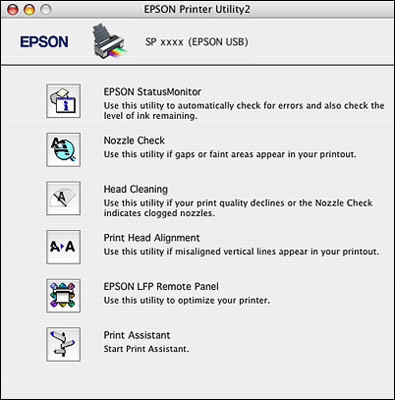
- Open the Epson Printer Utility.
- Double-click the EPSON Printer Utility icon in the Applications folder in Macintosh HD. Select the printer from the Printer List, then click OK.
- Print Head Alignment should be visible in the list.
2. Using Print Head Alignment Utility
- Click on Print Head Alignment.
- Read the on-screen instructions, and then click Next.
- Click Print. An alignment sheet will be printed.
- Follow the on-screen instructions and check the alignment sheet.
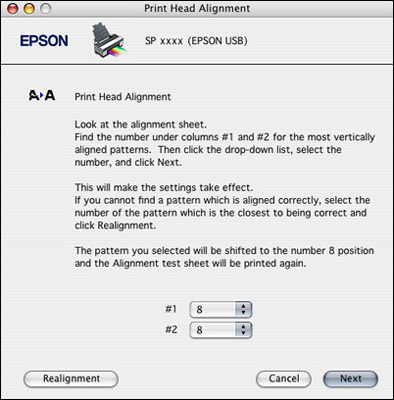
In this example, the alignment pattern is a series of lines. The print head is correctly aligned when the lines that are printed are aligned to the centre position, in this case number 8.
Please note that the drop-down menus will always be set on a default value. Always read the instructions carefully and select the best match from the pull-down menus.
Find the most aligned pattern in each section (in the illustration above there is #1 and #2). If it is already the default value, shown on the pull-down menu, then the print head is already aligned correctly so click Next. If it is a different pattern, select the number of that pattern from the pull-down menu, and repeat this for each section. Then click Realignment. Continue to follow the on-screen instructions to complete the Print Head Alignment check.
